

Knowledge & Calendar
Using the Operations Calendar to Schedule Facility Events
Use the Operations Calendar to give your AI agent time-bounded context about upcoming events, specials, maintenance windows, and closures at your facility.
The Operations Calendar lets you supply your AI agent with time-bounded information about anything happening at your facility — tournaments, league nights, dining specials, maintenance work, temporary closures, and other operational changes. Unlike standing Knowledge Base content, calendar events are active only during the window you configure, so your agent automatically stops referencing them when they are no longer relevant. Events are facility-specific, and all times on the calendar use your facility's local timezone.
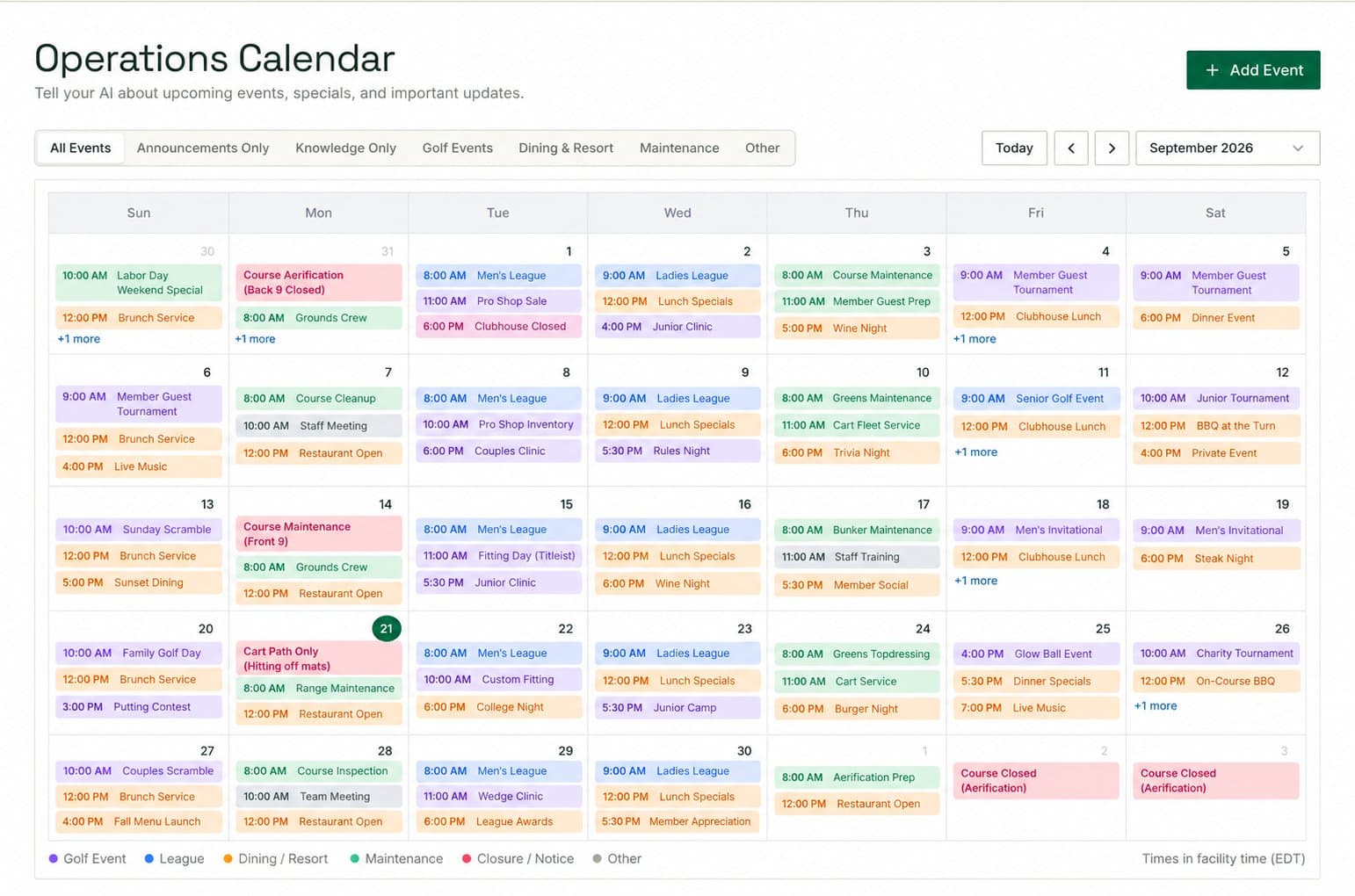
All dates and times you enter are interpreted in your facility's configured timezone. If your facility spans a daylight-saving boundary, verify your event windows after any time change to confirm they still reflect your intent.
Adding a Calendar Event
Open Operations Calendar
Navigate to Operations Calendar in the left sidebar of your facility dashboard.
Select Add Event
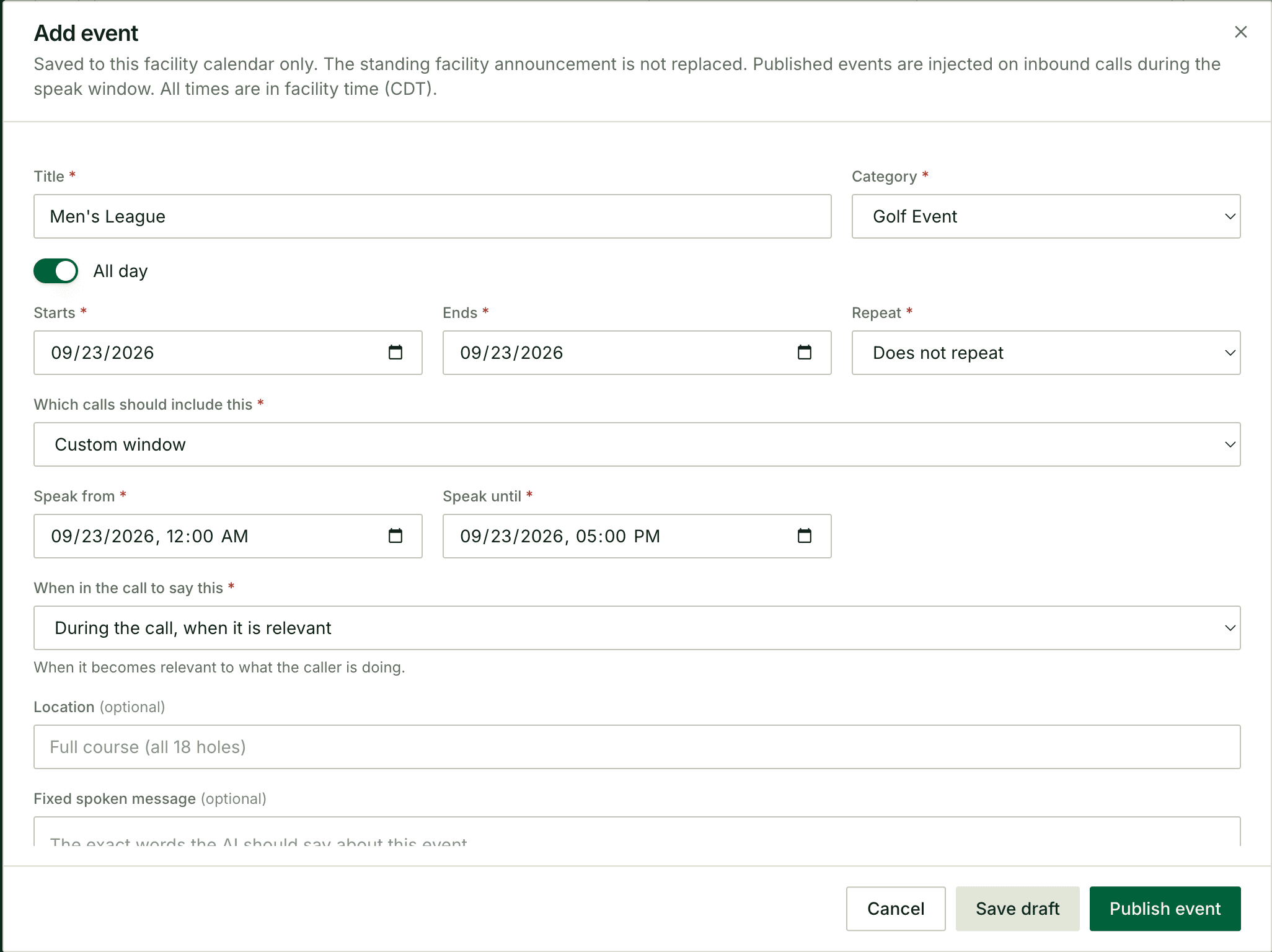
Select Add Event to open the event creation form.
Enter a short Title
Type a concise title that identifies the event — for example, Member-Guest Tournament or Cart Path Aerification. The title is for your reference and is not read aloud to callers.
Choose a Category
Select the category that best describes the event:
- Golf Event — tournaments, outings, clinics, or other scheduled golf activities
- League — recurring league play, including mens, womens, and junior leagues
- Dining & Resort — restaurant specials, private dining events, or resort promotions
- Maintenance — aerification, irrigation work, course closures for turf care, or equipment service
- Closure / Notice — full or partial facility closures, weather-related notices, or access restrictions
- Other — anything that does not fit a category above
Set the event date and time
Toggle All day if the event spans an entire calendar day without a specific start or end time. Otherwise, enter the start date and time and end date and time for when the event itself occurs.
Choose whether the event repeats
If the event recurs — for example, a weekly league night — enable the repeat option and configure the recurrence pattern. Leave this off for one-time events.
Choose which calls should include this event
Set the speak window — the period during which your agent is supplied with this event's information. See Speak Window Options below for a full description of each choice.
Choose when in the call to say this
Select how your agent should surface this event during a call. See Call Placement Options below.
Add optional content fields
Fill in the Location, Fixed spoken message, Description, and How the AI should handle this fields as needed. See Event Content Fields below.
Save or publish the event
Select Save draft to store the event without activating it, or select Publish event to make it active. Only published events are supplied to callers during their speak window.
Speak Window Options
The speak window controls when your agent is supplied with the event — it does not have to match the event's own start and end dates.
The event dates describe when the event occurs at your facility. The speak window describes when your AI agent should use that event during calls. These two windows are independent — set them separately based on when callers should start hearing about the event and when they should stop.
| Option | Use it when |
|---|---|
| From the start of the first day until it ends | The AI should have the event for the full calendar span — from the beginning of the event's first day through the end of its last day. |
| Only while it is happening | The AI should reference the event only between its exact start and end times. Useful for live events where relevance is strictly time-bound. |
| Start a few days before | Callers should be able to hear about or ask questions regarding the event beginning a set number of days before it starts. Useful for advance notice of tournaments or special promotions. |
| Custom window | You need specific "speak from" and "speak until" times that do not align with the event dates — for example, starting an aerification notice the evening before work begins, or ending a closure notice at noon on the day access is restored. |
Call Placement Options
| Option | Behavior |
|---|---|
| At the start of the call | The AI announces the event proactively near the greeting, before the caller states their reason for calling. Use this for high-priority notices that every caller should hear, such as an imminent closure. |
| During the call, when it is relevant | The AI mentions the event only when the caller asks something related to it. Use this for most events to avoid interrupting callers who have unrelated questions. |
| Before the call ends | The AI mentions the event after the caller's main request is handled, just before closing the call. Use this for soft promotions or upcoming specials you want callers to know about without prioritizing. |
Event Content Fields
These optional fields give your agent the words and context it needs to communicate about the event accurately.
- Location: Where the event or restriction applies — for example, Back nine, Driving range, or The Grille Room. Include this when the event affects only part of your facility.
- Fixed spoken message: The exact words your agent should say when it surfaces this event. Leave this blank if you want the agent to compose its own natural-language summary from the Description field.
- Description: Facts and details the agent can draw on when a caller asks a follow-up question — for example, entry fees, shotgun times, dress code, or contact information for reservations.
- How the AI should handle this: Optional behavioral instructions that guide how your agent responds to questions about this event. Enter one instruction per line for clarity.
Keep fixed spoken messages short — one or two sentences at most. A long scripted message interrupts the natural flow of a call. Use the Description field for the details, and let the agent surface them conversationally when a caller asks.
Drafts vs. Published Events
A draft event is saved to the calendar but is not supplied to callers under any circumstances. Use drafts to prepare events in advance and publish them when you are ready for them to go live.
A published event is active and will be supplied to callers during its configured speak window. Outside the speak window, a published event is not used — even if it remains on the calendar.
When the timing, wording, or instructions for an event change, edit the existing event rather than creating a new one. Archive or remove events that should no longer appear on the calendar to keep your event list clean and easy to manage.
A calendar event supplements your facility's standing announcement — it does not replace it. Callers will still hear your standard greeting and have access to your full Knowledge Base alongside any active calendar events.
Knowledge Base
Keep your AI agent accurate by updating the formatted facility information it draws on when answering caller questions about your golf facility.
Customers
Search customer records, review recent reservations and calls, and configure optional customer attributes for each facility in SpeakSport.