

Configuration
Configure Facility Settings, Hours, and Call Templates
Manage facility details, plan operating hours for the whole year with seasonal schedules and overrides, and configure booking links and call templates.
The Facilities section is your central hub for the operational details that shape how your AI agent presents and conducts itself on every call. Changes you make here flow directly into reporting accuracy, after-hours calculations, and the way the agent describes your venue to callers.
Open a facility
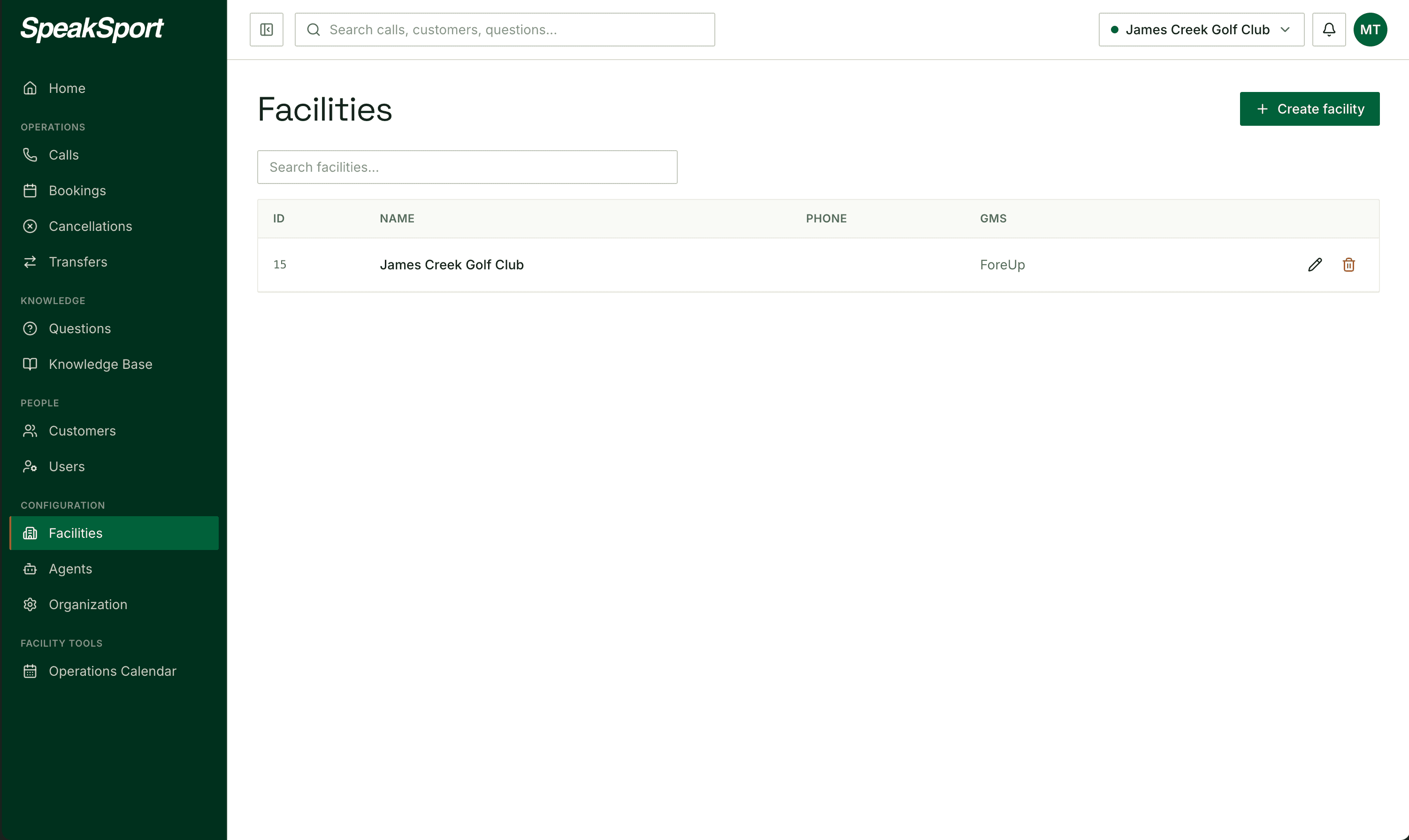
Navigate to Facilities in the left sidebar and select the facility you want to configure. All settings described on this page live within that facility's context.
General settings
Open the Overview tab to manage the core details of your facility in the General section. Operating hours are managed separately in Availability.
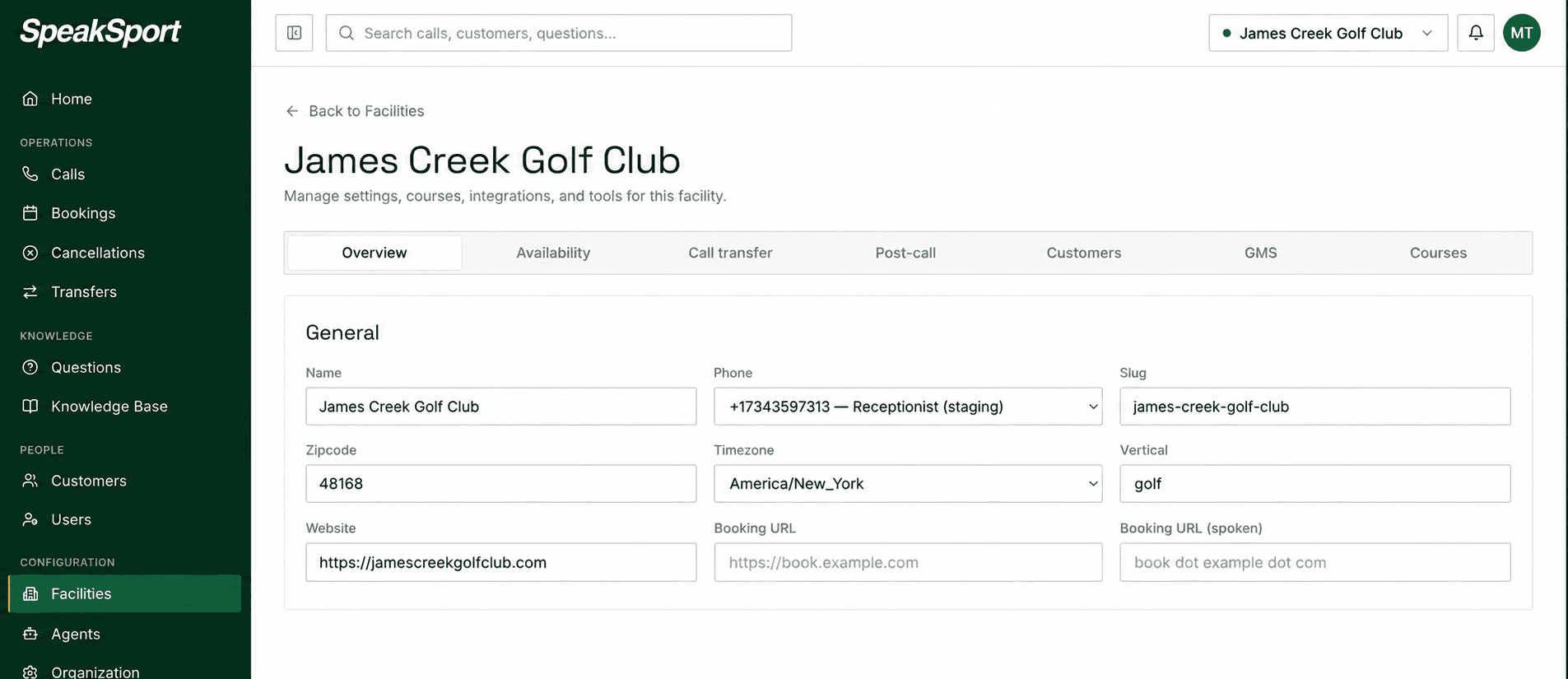
The official name of your venue. The agent uses this name when identifying the facility to callers and it appears throughout your reports.
The primary phone number associated with this facility. Used in reporting and caller-ID context.
Your facility's ZIP code. Used to verify timezone defaults and support regional reporting.
The local timezone for this facility. This drives all after-hours calculations — make sure it matches your physical location.
Your facility's public website URL. The agent may reference this when directing callers to find general information online.
The direct URL callers should visit to make a reservation or tee-time booking.
A human-friendly, speakable version of your booking URL — for example, "our website at Pebble Beach dot com slash book." The agent reads this aloud instead of the raw URL so callers can understand and remember it.
Availability
Open Facilities, select your facility, and choose the Availability tab to set its operating hours. Plan the whole year in advance with separate date ranges for spring, summer, fall, and winter, so you do not have to change the hours each time a new season begins.
Availability replaces the Opening time and Closing time fields previously found under Overview → General. Keep your facility's timezone in Overview → General up to date; availability hours use that local timezone.
Add a date range and default hours
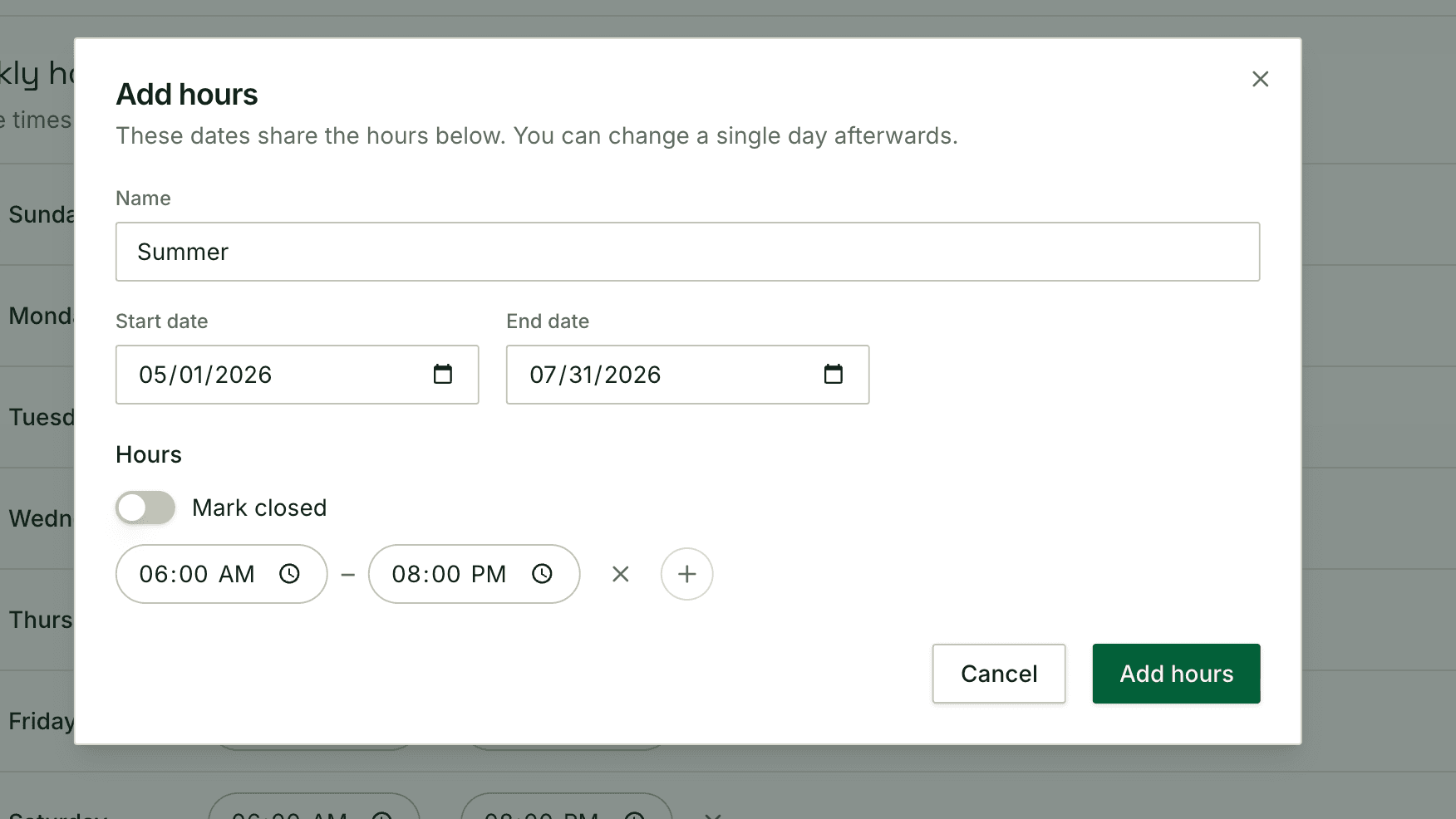
Each date range has a name, a start date, an end date, and default hours that apply to every day in that range unless you set a weekday or date override.
- Click Add beside the date ranges. If you are setting up availability for the first time, click Add hours.
- Enter a name, such as Summer, and choose the start and end dates.
- Set the opening and closing hours. Use + to add another time slot if the facility closes and reopens during the day, or turn on Mark closed if it is closed throughout the range.
- Click Add hours to create the schedule.
For example, the Summer range below runs from May 1 through July 31, 2026, with default hours of 6:00 AM–8:00 PM. Both the start and end dates are included.
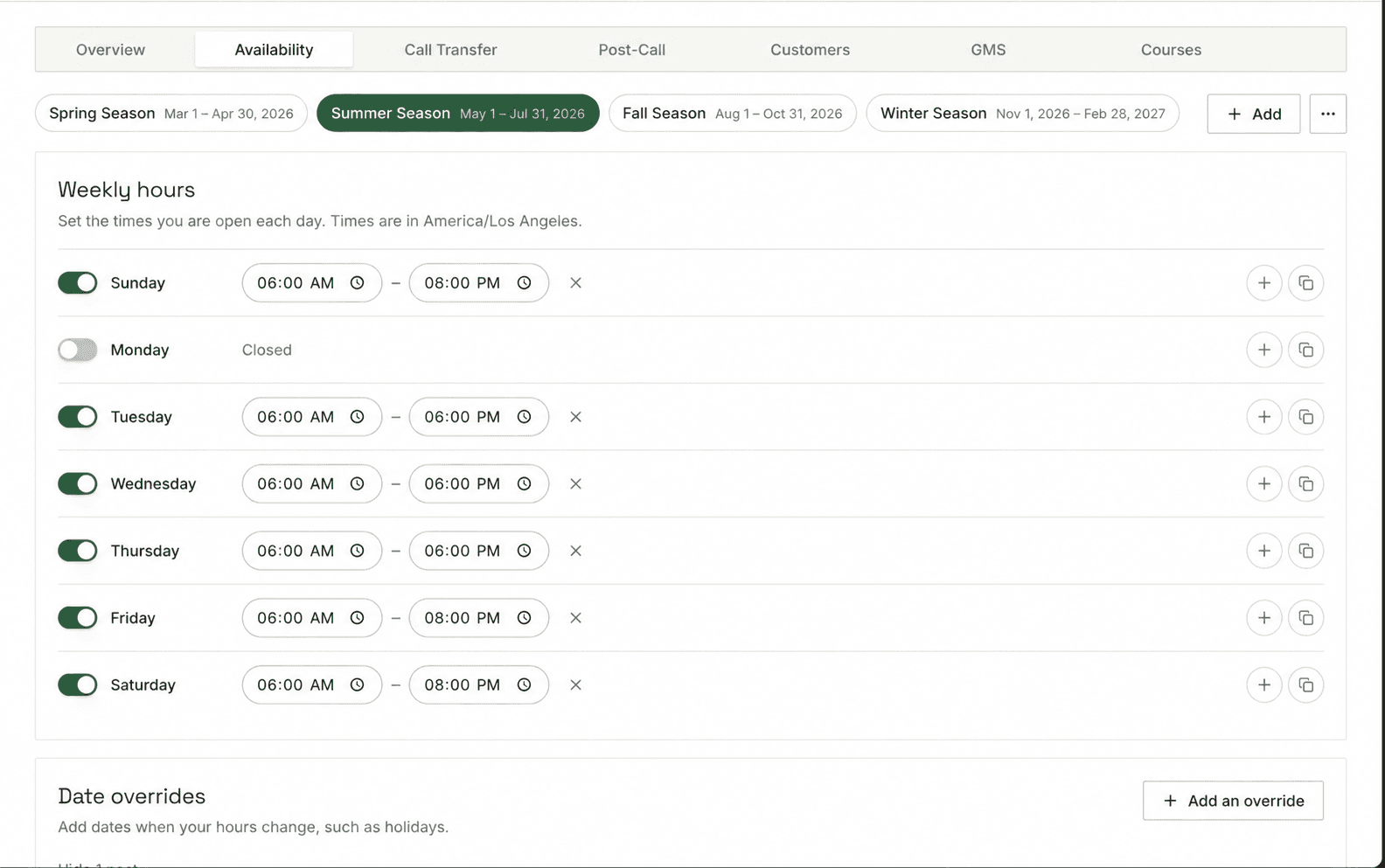
Add the remaining seasonal ranges to cover the year. Date ranges cannot overlap. Check for gaps between ranges so every date you want to schedule has hours defined. A winter range can cross into the next year, as shown by November 1, 2026–February 28, 2027 in the Availability screenshot.
Customize weekly hours and closed days
Select a date range to view its Weekly hours. Change individual weekdays when they differ from the range's default schedule:
- Set different hours for a weekday by editing its time slots.
- Turn a day's switch off to mark it Closed.
- Use + to add another time slot, or the copy icon to apply a day's hours to other weekdays.
- Click Save after changing weekly hours.
These changes repeat each week within the selected date range. In the summer example, Monday is closed, Tuesday through Thursday are open 6:00 AM–6:00 PM, and Friday through Sunday are open 6:00 AM–8:00 PM.
Add date overrides for holidays and exceptions
Use Date overrides for specific dates when your hours differ from the weekly schedule, such as holidays, special events, or a one-day closure.
- Select the date range containing the date you want to change.
- In Date overrides, click Add an override.
- Select the date or dates, set the hours or mark them closed, and optionally enter a name such as Memorial Day.
- Click Add override.
The Memorial Day example opens on Monday, May 25, 2026, from 9:00 AM–8:00 PM, even though Mondays are normally closed in the summer schedule. Other Mondays keep their usual closed status.

A date override takes priority over weekly hours, and a weekday without an override uses the date range's default hours. Use the pencil icon to edit a date override or the trash icon to remove it and return that date to its usual schedule.
Call templates
Open the Call templates tab within your facility to control the standard messages your agent delivers at key points in every call.
Greeting
The greeting is the first thing a caller hears when the agent picks up. Write a welcoming, on-brand opening that orients callers and invites them to state their reason for calling.
Disclaimer
Use the disclaimer to play a required notice early in the call — for example, a recording disclosure or a quality-assurance statement. Keep it concise so it does not delay the caller's experience.
Announcement
The announcement is a standing facility message the agent delivers on every call. Use it for persistent information such as seasonal hours, an upcoming event, or a policy reminder that applies until you update it.
Confirmation SMS
When SMS confirmations are enabled for your facility, this message is sent to the caller after a booking is successfully completed. Craft it to confirm the key booking details and provide any follow-up instructions the guest needs.
Use the Operations Calendar for time-bounded announcements such as holiday closures or one-day events. Adding a calendar event surfaces that message during the relevant window but does not replace the standing facility announcement — both can be active at the same time.
Customers
Search customer records, review recent reservations and calls, and configure optional customer attributes for each facility in SpeakSport.
Call Transfers
Set up the desks and teams your AI agent can route callers to, including display names, phone numbers, routing responsibilities, and transfer messages.