

Knowledge & Calendar
How to Update Your Facility Knowledge Base in SpeakSport
Keep your AI agent accurate by updating the formatted facility information it draws on when answering caller questions about your golf facility.
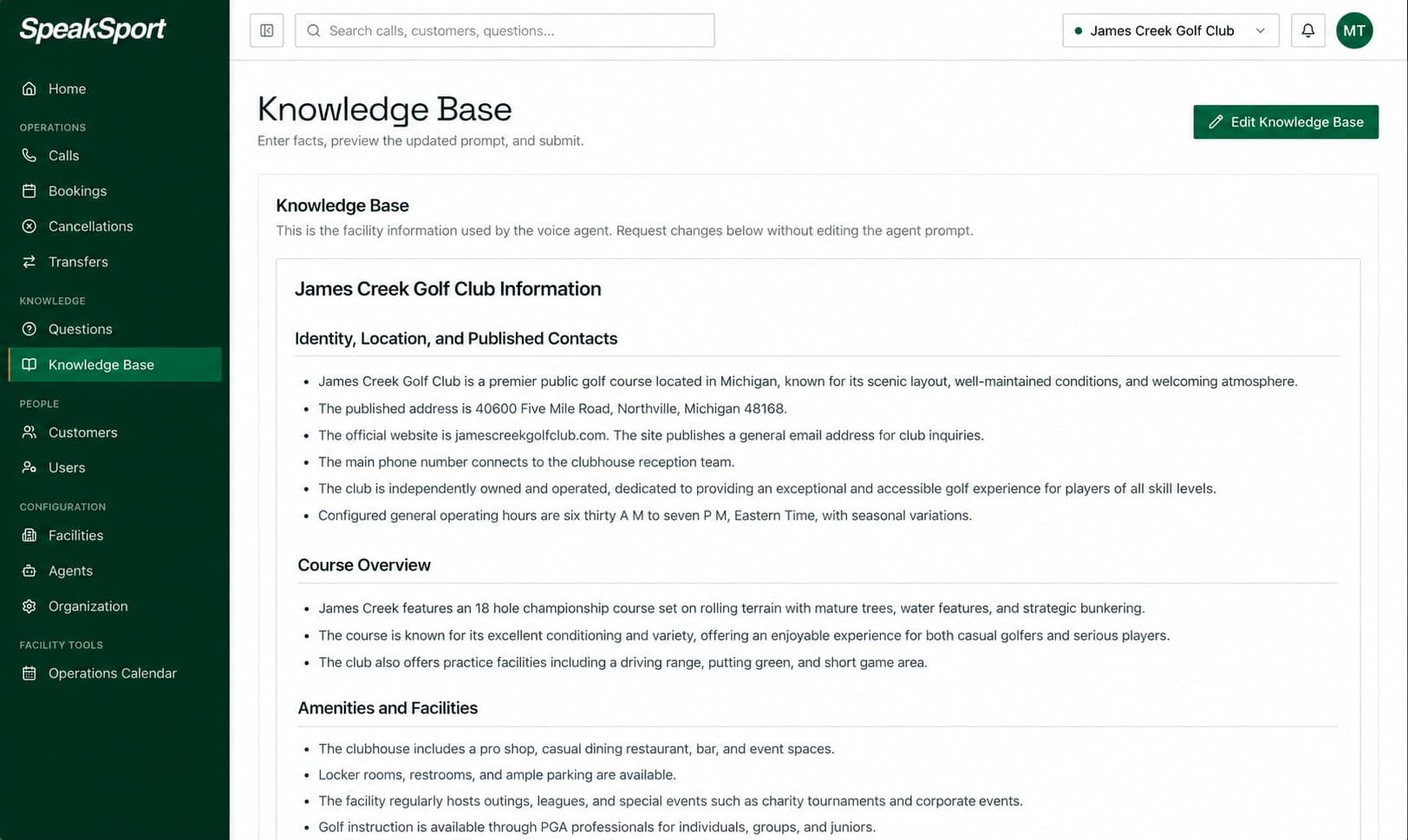
The Knowledge Base is the formatted library of facility information your AI agent consults when answering caller questions — things like hours of operation, pricing, dress code, amenities, and policies. It is separate from the call greeting your callers hear when they first connect, and it is separate from time-limited entries on the Operations Calendar. Keeping the Knowledge Base accurate and up to date is the most direct way to ensure your agent gives callers correct, consistent answers.
Requesting a Knowledge Base Update
You work with the Knowledge Base through a guided editor that lets you describe changes in plain language, preview the result, and approve it before anything goes live.
Open Knowledge Base
Navigate to Knowledge Base in the left sidebar of your facility dashboard.
Select Edit Knowledge Base
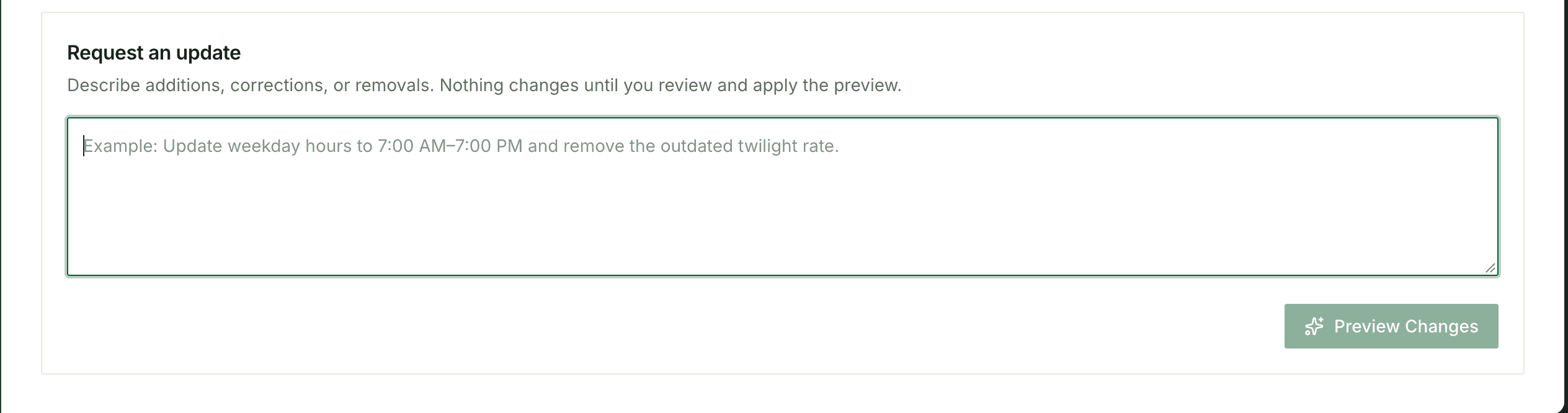
Select Edit Knowledge Base to open the update request form.
Describe your changes
In the request field, describe the additions, corrections, or removals you need in plain language. Be as specific as possible — include exact names, times, prices, or policy wording wherever you have it.
Select Preview Changes
Select Preview Changes. The editor processes your request and generates a proposed update to the formatted content.
Review the proposed content
Read through the preview carefully. The editor highlights differences between the current content and the proposed version so you can confirm that every change matches your intent.
Approve or apply the preview
When the preview looks correct, select Approve or Apply to promote the changes to your live Knowledge Base. If anything is wrong, revise your request and preview again before approving.
Typing a request and selecting Preview Changes does not update your live Knowledge Base. You must review the proposed content and explicitly approve or apply the preview before any change takes effect. Always read the full diff before approving — an approved update replaces the previous version immediately.
After you approve a change, your agent may need a short synchronization period before it draws on the updated information during calls. If you test immediately after an update and the agent still reflects the old content, wait a moment and try again.
Tips for Writing Good Update Requests
The clearer your request, the more accurately the editor can generate the right content. Vague or incomplete descriptions may produce results that need several rounds of revision.
Be specific and factual. For example: "Update the weekday opening time to 7:00 AM and remove the outdated twilight-rate paragraph." Include exact figures — times, prices, hole counts, room names — rather than relative language like "make it earlier" or "lower the price a bit."
A few additional guidelines:
- One topic at a time works best for large updates. Batching many unrelated changes into a single request can make the preview harder to verify.
- Quote exact wording when you need the agent to use a specific phrase, such as a policy statement or a branded amenity name.
- Avoid using the Knowledge Base editor to change call transfer routing, caller authentication settings, or any other configuration that has its own dedicated page in the dashboard. Use the appropriate settings page for those changes so they take effect correctly.
Cancellations
Browse all cancelled reservations in one place, then drill into the originating call to see exactly how each cancellation was handled.
Operations Calendar
Use the Operations Calendar to give your AI agent time-bounded context about upcoming events, specials, maintenance windows, and closures at your facility.