

Configuration
Configure Your AI Agent's Voice and Audio Experience
Select your agent's voice, preview it before going live, and control background audio settings to shape the caller's audio experience.
The Agents section controls the audio experience your callers have from the moment the agent answers. You can choose the voice that represents your facility and decide whether callers hear a realistic office ambiance or a clean, voice-only environment.
Open the agent settings
Navigate to Agents in the left sidebar and select the agent assigned to your facility. Each facility has one assigned agent whose audio settings you manage here.
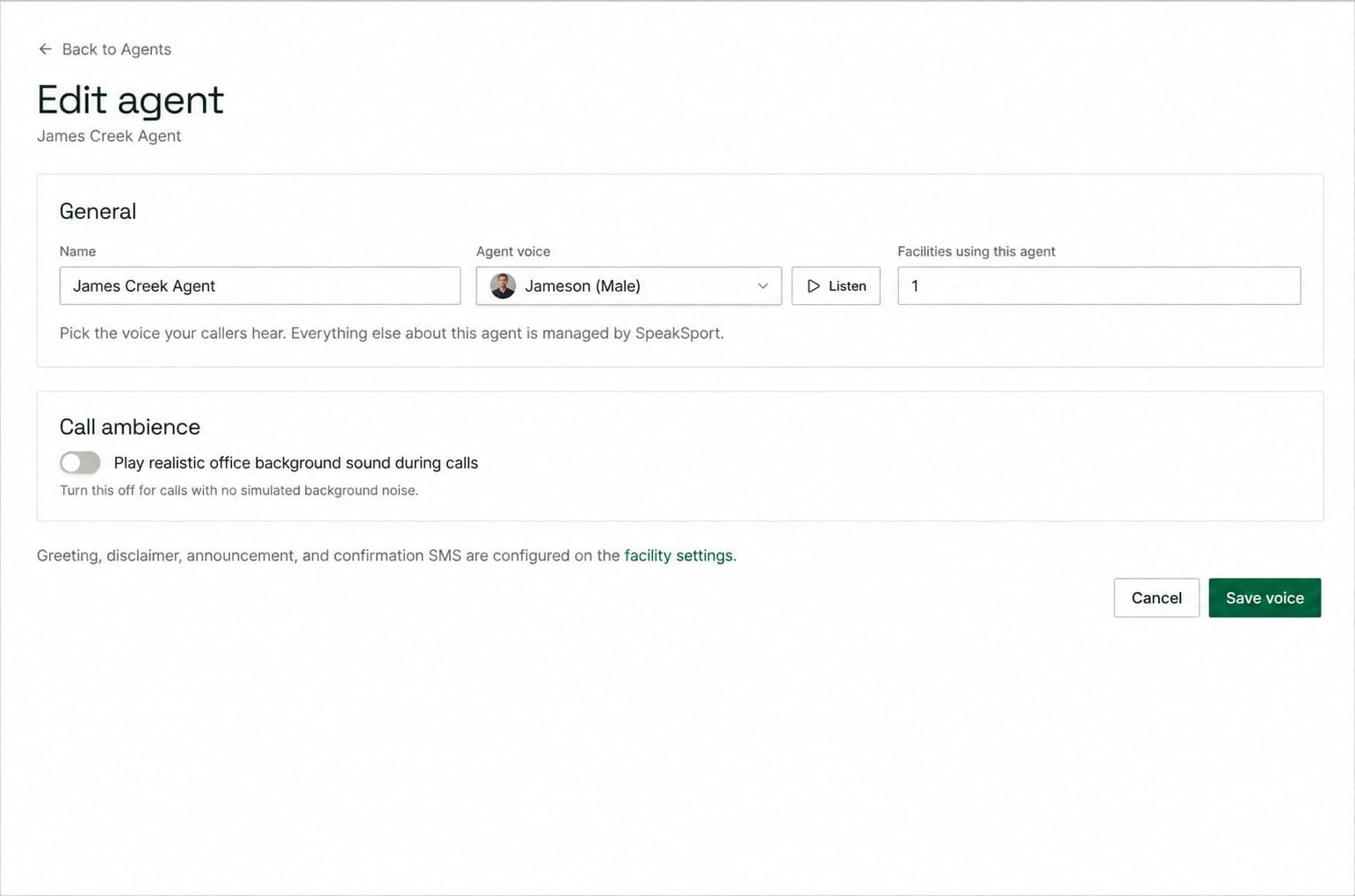
Choose a voice
Select your preferred voice from the available options in the Voice dropdown. SpeakSport offers a range of voices with different tones and styles to match your facility's brand.
Use the Listen button next to each voice option — or the Voice preview tool — to hear a sample before committing. Always preview with a phrase similar to your actual greeting so you can judge how the voice sounds in context.
Select Save after choosing a voice to apply it to live calls.
Background sound
Toggle Play realistic office background sound during calls to control the ambient audio callers hear beneath the agent's voice.
| Setting | Effect |
|---|---|
| On | Callers hear a subtle, simulated office environment in the background. This can make the interaction feel more natural and less robotic for some audiences. |
| Off | Callers hear only the agent's voice with no background audio — a cleaner experience that may suit formal or high-clarity contexts. |
Choose whichever setting aligns best with the atmosphere your facility wants to convey. You can toggle this at any time without affecting other agent settings.
What is not configured here
The text content spoken by your agent — including the greeting, disclaimer, standing announcement, and confirmation SMS — is managed at the facility level, not on this page.
To edit your greeting, disclaimer, announcement, or confirmation SMS, go to Facility Settings → Call Templates.
Call Transfers
Set up the desks and teams your AI agent can route callers to, including display names, phone numbers, routing responsibilities, and transfer messages.
Post-Call Tags
Add custom tags and LLM instructions so your AI agent applies facility-specific categories and focused analysis to every call after it ends.