

Configuration
Manage SpeakSport Users, Roles, and Authentication
Add users to your SpeakSport organization, assign roles, and understand the authentication methods available for your team's sign-in experience.
The Users section lets you control who has access to your SpeakSport dashboard and what they can see. Because visibility is scoped to each person's organization and facility assignments, the right role and setup ensures your team members see exactly what they need — and nothing they shouldn't.
Roles
SpeakSport has two roles available at the dashboard level:
| Role | Description |
|---|---|
| Organization admin | Has access to all facilities and settings within the organization. Suitable for managers who oversee multiple venues or need full administrative control. |
| Facility manager | Has access only to the specific facilities they are assigned to. Suitable for on-site staff who work within a single location. |
Both roles use the same standard dashboard workflows — the difference is in which facilities and data each person can view and edit.
Add a user
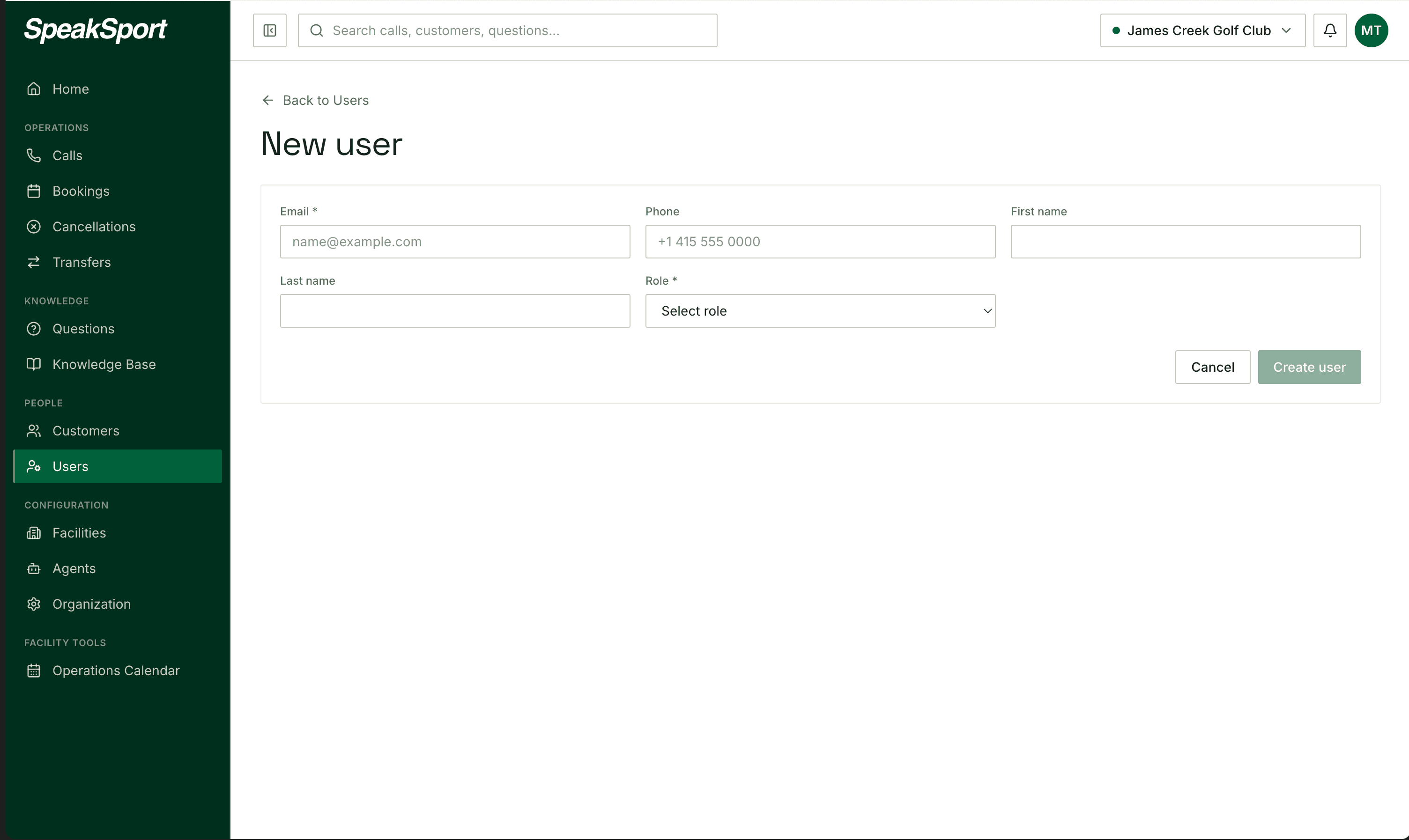
Open Users
Navigate to Users in the left sidebar of your SpeakSport dashboard.
Select Add user
Click Add user (sometimes labeled New user) to open the user creation form.
Enter the email address
Type the user's email address. This is the address they will use to sign in — make sure it is the correct, active email for that person.
Add their name and phone number
Optionally enter the user's full name and phone number. This information helps you identify users in the dashboard and may be used for account recovery depending on your authentication method.
Select a role
Choose either Organization admin or Facility manager based on the level of access this person needs.
Create the user
Select Create (or Save) to finalize the account. The new user receives sign-in instructions automatically via email, based on your organization's configured authentication method.
Authentication methods
Authentication is configured at the organization level and applies to all users in your account. The method in use determines how every team member signs in.
| Method | How it works |
|---|---|
| Email code | The user enters their email address and receives a one-time code to complete sign-in. No password is required. |
| Password | The user signs in with a password. A new user is prompted to set their password on their first login. |
| Password + email code | The user completes both a password step and an email-code verification step. This provides an additional layer of security. |
To change the authentication method for your organization, contact SpeakSport support. You cannot change this setting from within the dashboard.
Never share your sign-in code with another person. One-time codes are tied to your individual account and expire quickly. If someone else needs access to SpeakSport, add them as a user through the process above rather than sharing your credentials.
Post-Call Tags
Add custom tags and LLM instructions so your AI agent applies facility-specific categories and focused analysis to every call after it ends.
Glossary
Definitions for key SpeakSport concepts used across the platform, including calendar events, call reporting, transfers, and facility configuration.